

How to Create a Custom 404 Error Page on Squarespace
Nothing hurts user experience more than a dead-end error page. A custom Squarespace 404 page turns a frustrating dead end into a helpful detour.
Why Your Squarespace Site Needs a Custom 404 Page
A default 404 page is generic and unhelpful. It leaves visitors confused and likely to leave your site immediately.
A custom 404 page keeps your branding consistent. It guides lost users back to your key content and improves overall site engagement.
Benefits of a Custom Squarespace 404 Page
A well-designed error page serves multiple purposes for your Squarespace website.
- Improves User Experience: A friendly message reduces frustration and keeps visitors exploring.
- Maintains Branding: Your logo, colors, and tone reassure users they are still on your site.
- Reduces Bounce Rate: Clear navigation links prevent users from hitting the back button.
- Recovers Lost Traffic: Direct visitors to popular products, blog posts, or your homepage.
Step-by-Step Guide to Creating Your 404 Page
Creating a custom 404 page in Squarespace is a straightforward process. You will work within the standard page editor.
Step 1: Create a New Not Linked Page
First, you need to create the page that will become your custom 404. Navigate to the Pages panel in your Squarespace dashboard.
Click the "+" icon to add a new page. Select "Page" from the menu. Choose a blank layout or a template that matches your site’s style.
Title this page "404" or "Page Not Found" for your own reference. Most importantly, ensure the page is set to "Not Linked." This hides it from your main navigation.
Step 2: Design Your 404 Page Content
Now, design the content for your error page. Use text blocks, image blocks, and buttons to create a helpful experience.
Consider including these key elements:
- A clear, apologetic headline (e.g., "Oops! That page is lost.")
- A brief, friendly explanation.
- A search bar block so users can find what they need.
- Button blocks linking to your Homepage, Main Categories, or Contact page.
- Your site logo and consistent footer.
Keep the design simple and focused on guiding the user forward.
Step 3: Assign the Page as Your 404 Page
This is the critical step. Go back to the main Pages panel. Scroll down to the "Not Linked" section and find your new 404 page.
Hover over the page and click the gear icon to open settings. Navigate to the "Page" tab. Find the option labeled "Page URL Slug."
Change the slug to exactly this: /404. Save the changes. Squarespace now recognizes this as your official 404 error page.
Advanced Customization and Pro Tips
Go beyond the basics to create a truly exceptional error page. These tips will enhance functionality and design.
Adding a Search Bar
A search bar is the most useful tool on a 404 page. In the page editor, add a new block and select the "Search" block type.
Place it prominently below your explanatory text. This empowers users to find their content instantly without further navigation.
Using a Button Block for Navigation
Button blocks are perfect for clear calls-to-action. Add a button block and link it to your homepage or a key landing page.
Use compelling text like "Return Home" or "Browse Our Shop." You can add multiple buttons to direct traffic to different sections of your Squarespace site.
Styling with Custom CSS (Optional)
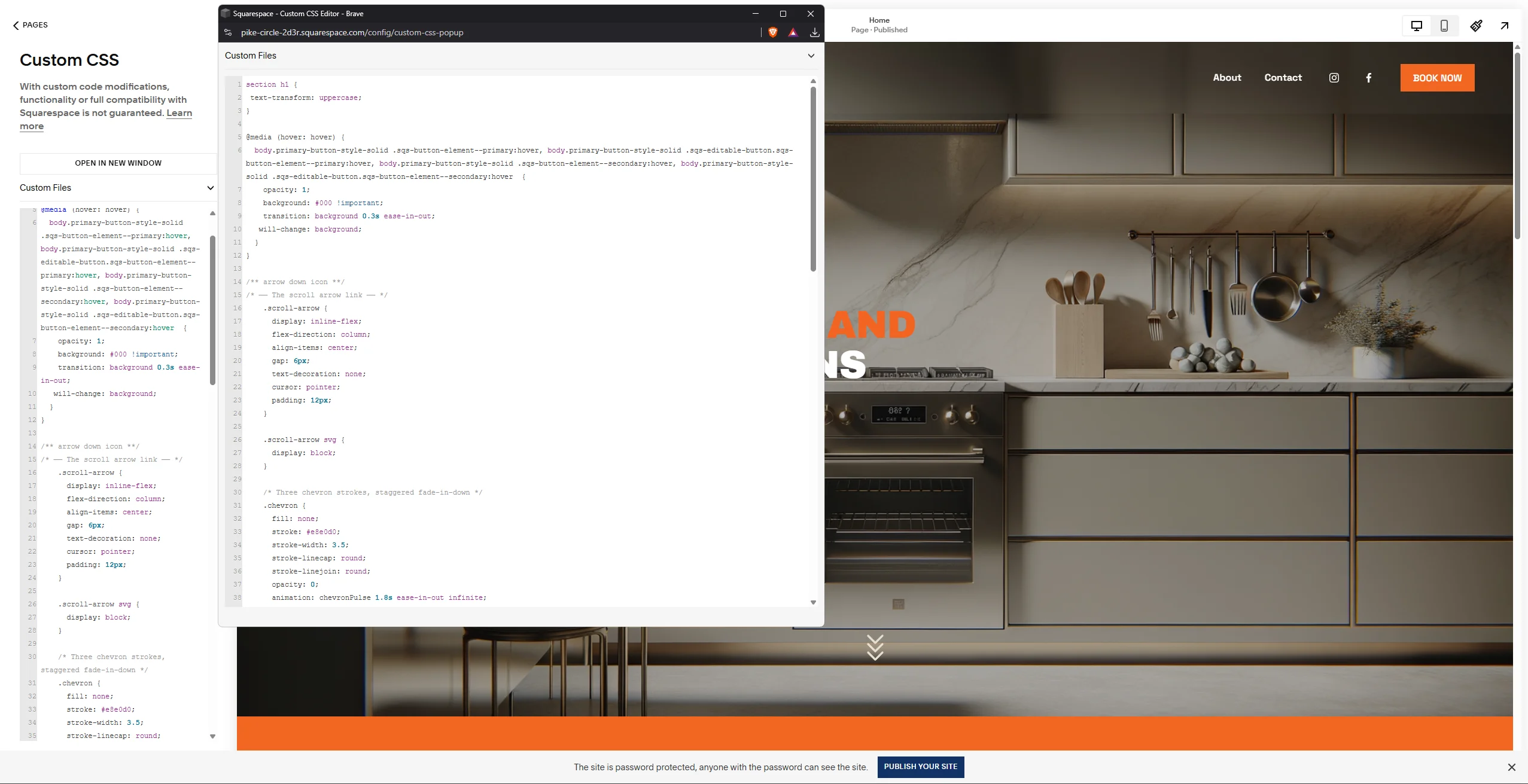
For advanced users, Squarespace allows custom CSS. You can access this via Design > Custom CSS.
You can write rules specifically for your 404 page by using the page ID. This lets you fine-tune fonts, colors, and spacing beyond the standard style editor.
Testing Your Custom Squarespace 404 Page
Always test your page to ensure it works correctly. Do not skip this vital step.
Simply type a non-existent URL for your website. For example, visit yourdomain.com/this-page-does-not-exist.
You should see your new custom 404 page appear. Check all links and the search bar to confirm they function properly.
Conclusion: Turn Lost Visitors into Engaged Users
A custom 404 page is a small detail with a major impact. It protects your Squarespace site from losing valuable traffic due to broken links or typos.
By guiding users back to relevant content, you improve metrics and strengthen your brand’s professionalism. It shows you care about the visitor’s experience from start to finish.
Ready to improve your site’s resilience? Log into your Squarespace dashboard now and build your custom 404 page in under 10 minutes. It’s one of the easiest and most effective UX upgrades you can make today.