

Is your Squarespace site loading slower than you’d like? A slow website frustrates visitors and hurts your search rankings. The good news is that you can make significant improvements in just a quarter of an hour. This guide delivers five critical, actionable fixes you can implement right now.
You don’t need to be a developer or leave the Squarespace platform. We’ll use built-in tools and smart optimizations. Let’s dive in and speed up your Squarespace site today.
Why Your Squarespace Site Speed Matters
Site speed is a direct ranking factor for Google. Faster pages keep visitors engaged and reduce bounce rates. Every second of delay can cost you conversions and revenue.
Squarespace provides a solid foundation for performance. However, your choices in images, code, and settings directly impact load times. Optimizing these elements is key to a fast Squarespace experience.
1. Radically Optimize Your Images (5 Minutes)
Large, unoptimized images are the number one cause of slow Squarespace sites. They bloat page size and make everything wait to load. Fixing this is your highest-impact task.
Use Squarespace’s Built-in Image Tools
Squarespace has powerful image processing. Always use the platform’s native image blocks. The system automatically creates responsive, web-friendly versions.
- Upload Correctly: Never paste images directly from a document. Always upload the original file through an image block.
- Choose the Right Format: Use JPEG for photos, PNG for graphics with transparency, and WebP for best overall compression.
- Resize Before Uploading: Scale images to the maximum width they’ll display. A hero image need not be 6000 pixels wide.
Enable Lazy Loading Sitewide
This is a Squarespace lifesaver. Lazy loading means images only load as the user scrolls to them. It dramatically speeds up initial page load.
Enable it in Settings > Advanced > Lazy Loading Images. Ensure it’s turned on. This simple switch improves your Squarespace SEO and user experience instantly.
2. Streamline and Minimize Custom Code (3 Minutes)
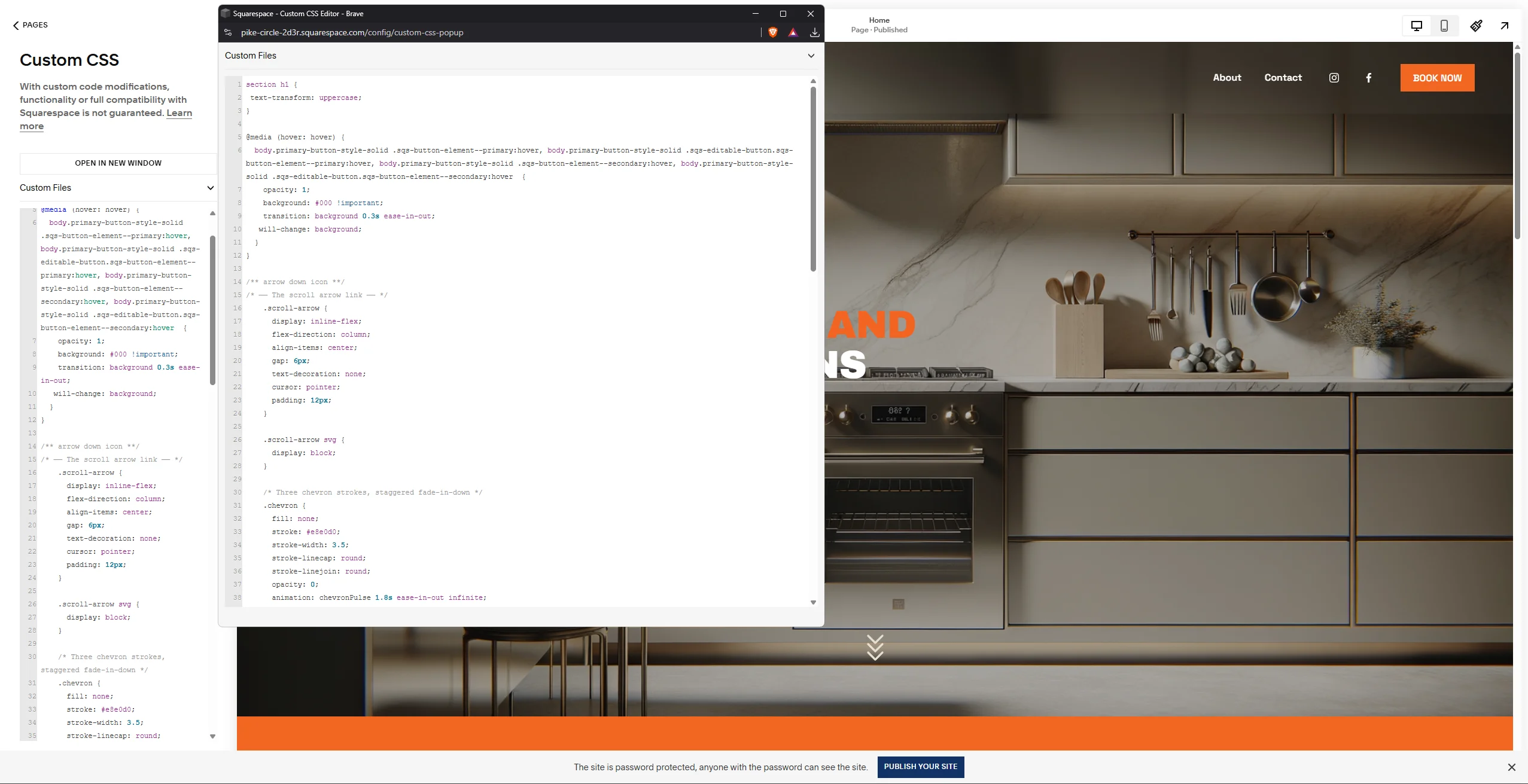
Custom CSS, fonts, and code injections are fantastic for customization. But they can seriously slow down your Squarespace template if mismanaged.
Audit Your Code Injections
Go to Settings > Advanced > Code Injection. Review the Header and Footer code. Remove any old, unused, or redundant scripts.
- Combine Codes: If you have multiple small CSS snippets, merge them into one.
- Use Native Features First: Before adding a code solution, check if a Squarespace block or setting can achieve the same goal.
- Limit Web Fonts: Each custom font file (like from Google Fonts) is an extra HTTP request. Stick to one or two font families.
3. Leverage Squarespace’s Built-in Performance Features (2 Minutes)
Squarespace has integrated CDN and caching. You must ensure these features are fully leveraged. A few clicks can activate powerful optimizations.
Enable AMP for Your Blog
Accelerated Mobile Pages (AMP) create stripped-down, ultra-fast versions of your blog posts. This is crucial for mobile readers and SEO.
Enable it in Settings > Blogging > AMP. Check the box to turn it on. This gives your Squarespace blog a speed boost for search traffic.
Check Your Template Version
Older Squarespace templates may not have the latest performance enhancements. Ensure you are using the most recent version of your chosen template family.
Newer Squarespace 7.1 templates are generally faster and more efficient. Consider this if you’re on an older 7.0 template and serious about speed.
4. Simplify Your Page Design and Structure (3 Minutes)
Overly complex pages with dozens of sections and animations can strain resources. A cleaner design often loads faster and converts better.
Reduce Section Count and Animations
Review your key pages. Do you really need 15 consecutive sections? Each section adds weight.
- Limit Scroll Effects: Parallax and fade-in animations are beautiful but resource-heavy. Use them sparingly on critical pages.
- Consolidate Content: Can two text blocks be merged? Can images be combined in a gallery? Simplification aids speed.
- Audit Embeds: Social media feeds, complex calendars, and third-party widgets can slow things down. Embed only what’s essential.
5. Connect and Optimize Your Squarespace Analytics (2 Minutes)
Improperly loaded analytics scripts can block page rendering. You want to measure traffic without sacrificing user experience.
Use Asynchronous Loading for Tracking Codes
When adding Google Analytics or other trackers via Code Injection, ensure the code is asynchronous. Most modern code snippets from Google are already async.
Never place heavy tracking scripts in the Header unless absolutely necessary. The Footer is often a safer location for non-critical scripts on your Squarespace site.
Test Your Squarespace Speed Improvements
After implementing these fixes, measure your results. Use free tools like Google PageSpeed Insights or GTmetrix. Run a test before and after to see the tangible gains.
Remember, scores are a guideline. Focus on the real-world improvement in load time (the “LCP” or Largest Contentful Paint metric). A faster-feeling site is the ultimate goal.
Conclusion: Maintain Your Fast Squarespace Site
You’ve just tackled the five most critical Squarespace speed fixes. The process should take about 15 minutes. Your site will now load faster, rank better, and please more visitors.
Make image optimization a habit for every new post. Periodically review your code and page structure. Squarespace’s platform handles the heavy technical lifting when you follow these best practices.
Ready to supercharge your online presence? A fast website is just the start. Audit your entire Squarespace SEO strategy today to convert that speed into more traffic and sales. Your visitors (and Google) will thank you.