
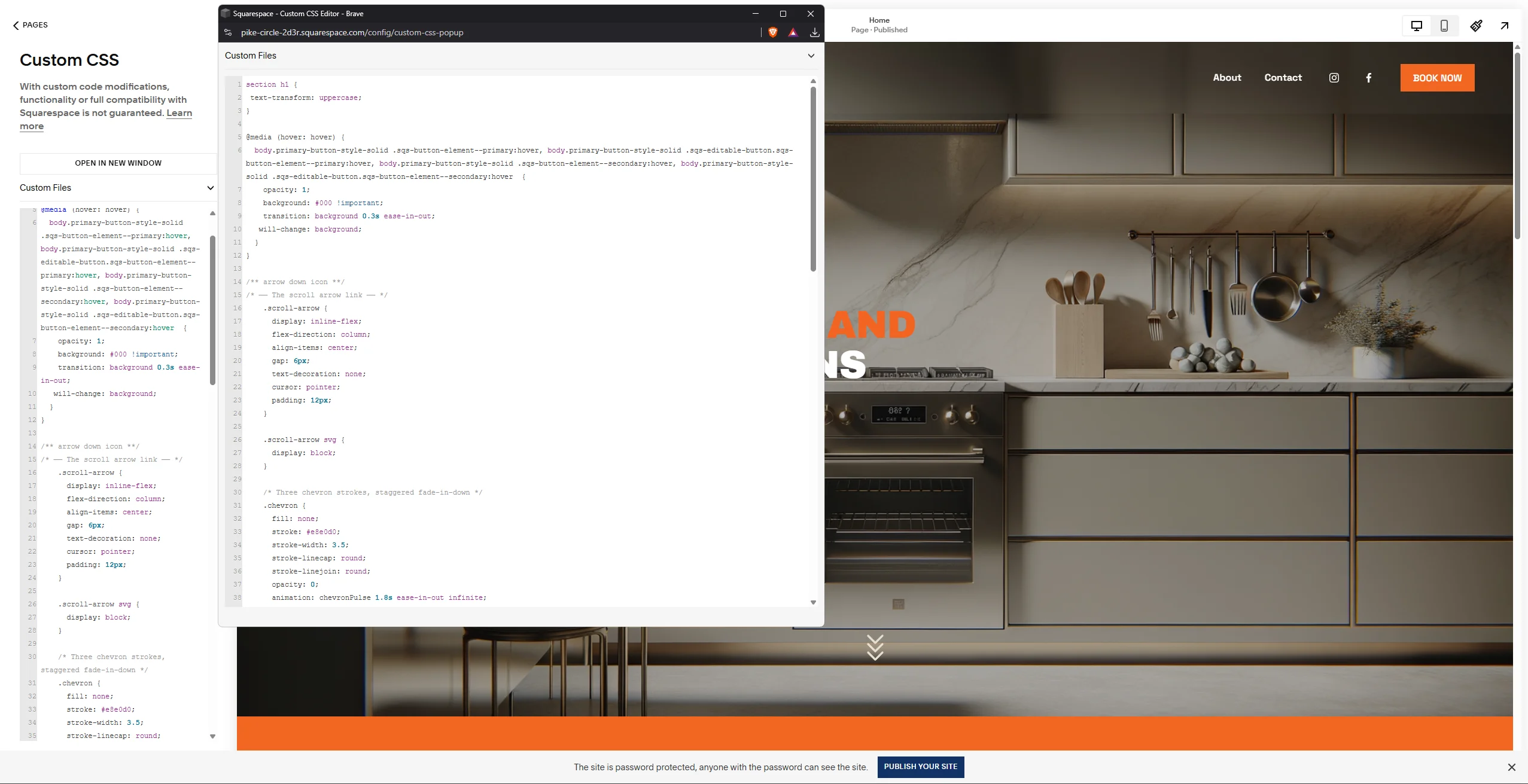

Your Squarespace site doesn’t have to feel static or limited by built-in settings. With advanced CSS techniques, you can transform a standard layout into a dynamic, interactive experience that feels custom-built.
As a Squarespace developer, I’ve learned that combining subtle animation with smart CSS implementation can dramatically improve how a site looks, feels, and performs. This guide walks you through practical advanced CSS tricks — plus real-world tips you won’t usually find in standard tutorials.
Why Use Custom CSS Animations on Squarespace?
Animations do more than make your site look modern — they guide user attention, improve engagement, and help visitors understand your content hierarchy naturally.
When used thoughtfully, motion:
-
Highlights important elements
-
Makes interactions feel responsive
-
Adds a premium, polished feel to your site
The key is subtlety. The best animations enhance the experience without overwhelming it.
Beyond Built-in Squarespace Animation Tools
Squarespace includes basic scroll effects and image animations, which are great for beginners. But once you start building more advanced websites, you’ll quickly run into limitations.
Custom CSS gives you full creative freedom:
-
Unique animations tailored to your brand
-
Micro-interactions that feel custom-designed
-
More control over performance and timing
Instead of relying on presets, you can create motion that feels intentional and cohesive.
Core CSS Concepts for Squarespace Animations
You only need to understand a few key CSS concepts to unlock powerful animation possibilities.
@keyframes: Defining the Animation Sequence
The @keyframes rule acts as the blueprint for your animation.
It defines:
-
Starting state (
from) -
Ending state (
to) -
Optional intermediate steps (
%values)
Example:
from { opacity: 0; transform: translateY(30px); }
to { opacity: 1; transform: translateY(0); }
}
The Animation Property: Control and Playback
The animation property applies your keyframes to an element and controls:
-
Duration
-
Timing function
-
Delay
-
Iteration count
-
Fill mode
This is typically added inside the Squarespace CSS editor.
Implementing Animations on Your Squarespace Site
To add animations globally:
👉 Navigate to:
Website → Website Tools → Custom CSS
This ensures your animation styles load across your entire Squarespace template.
Example:
animation: fadeInUp 0.8s ease-out forwards;
}
Developer Tip: Global CSS vs Page-Specific CSS (Real Experience)
One of the biggest mistakes I see is placing all CSS in one location without considering scope.
Use Global Custom CSS when:
-
Applying site-wide styles
-
Custom font sizes
-
Border radius adjustments
-
Global animation behaviors
-
Consistent UI styling
Global CSS keeps your design consistent and easier to maintain.
Use Page-Level CSS for Specific Customizations
If you only need styling on a specific page, avoid global CSS clutter.
Instead:
-
Click the page gear icon
-
Go to Advanced
-
Add CSS inside the header using:
/* page-specific styles here */
</style>
This method keeps your code modular and prevents unwanted styling conflicts.
You can also add inline scripts here when needed.
Step-by-Step: Professional Fade-In Scroll Effect
A clean fade-in animation is one of the most effective enhancements you can add.
First, define keyframes:
from { opacity: 0; transform: translateY(30px); }
to { opacity: 1; transform: translateY(0); }
}
Then apply it:
animation: fadeInUp 0.8s ease-out forwards;
}
Works well for both Squarespace 7.0 and 7.1.
Advanced Dynamic Effects for Squarespace
Once you understand basics, you can introduce interactive motion.
Hover Effects for Buttons and Images
Adding hover interactions creates subtle feedback for users.
.sqs-block-button .sqs-block-button-element:hover {
transform: translateY(-3px);
box-shadow: 0 10px 20px rgba(0,0,0,0.1);
transition: all 0.3s ease;
}
This small change instantly makes your UI feel more responsive.
Scroll-Triggered Animations Without JavaScript
You can trigger animations using CSS alone by combining classes and animation-play-state.
This works especially well alongside Squarespace’s parallax effects and avoids extra script overhead.
Advanced Squarespace Developer Tip: When Custom CSS Doesn’t Work
Here’s something many developers discover only after trial and error:
Some modern CSS — especially complex filter combinations — may not work properly inside:
👉 Design → Custom CSS
For example:
-
CSS filters with multiple values
-
Newer experimental properties
If your code isn’t being recognized:
Try these alternatives:
✅ Add inline styles via page Advanced settings:
-
Click gear icon
-
Go to Advanced
-
Add inside
<style>tags
OR
✅ Use Code Injection or inline stylesheet blocks.
In many cases, Squarespace processes these differently and the CSS works immediately.
Pro Tips for Squarespace Animation Performance
Animations should feel smooth — not heavy.
Best practices:
-
Animate
transformandopacityinstead ofwidth,height, ormargin -
Use
will-change: transform;sparingly -
Keep hover animations fast (200ms–500ms)
-
Always test mobile breakpoints
Performance matters more than complexity.
Troubleshooting Common Squarespace CSS Issues
Animation Not Playing
Check:
-
Selector specificity
-
Conflicts with Squarespace styles
-
Whether the element loads on page render
Use !important only as a last resort.
Animation Looks Choppy
Usually caused by performance issues.
Try:
This can force hardware acceleration.
Final Thoughts: Animate Your Squarespace Vision
Custom CSS gives you the power to turn a static Squarespace template into something truly unique.
Start small:
-
Fade-in effects
-
Hover interactions
-
Subtle motion enhancements
As you gain confidence, experiment with more advanced sequences and interactions.
The goal isn’t to add animation everywhere — it’s to guide users naturally while reinforcing your brand identity.
Open your Squarespace CSS Editor today and try one enhancement from this guide. You might be surprised how much difference a small animation can make.